Open-LIFU Photogrammetry App User Manual
Document ID: LBL-00017 · Revision: A · Software: v0.7.257 (Android app) · Released: 2026-10-21 · Authors: Seemal Tahir, David Paribello, Peter Hollender
Research use only
The Open-LIFU Photogrammetry App is for research use only. Not for use in diagnostic or therapeutic procedures. All information contained herein, including but not limited to product features, specifications, and descriptions, is subject to change without notice.
The Open-LIFU Photogrammetry App is the Android companion app that captures the images used to locate the Open-LIFU transducer on a subject. It is a supplement to the Open-LIFU User Manual, which covers the PC-side Transducer Localization workflow.
This page reflects a controlled document. The PDF below is the authoritative revision.
Download LBL-00017 Rev A (PDF, 24 pp.) Get the app on Google Play
Software overview
The Open-LIFU Photogrammetry App captures images of a subject (a photocollection), which are then used for photogrammetric reconstruction (a photoscan). Once captured, these images can be imported or synced with the Open-LIFU application and co-registered with a subject's MRI for targeted sonication planning.
When starting a scan, the user enters an ID that identifies the scan as belonging to the current study. The app then captures images automatically and gives feedback on how to position (or angle) the camera relative to the subject. Once the scan is complete, the phone connects to a PC (Offline Mode) or to Openwater's Cloud Services (Online Mode) for 3D reconstruction.
Intended use
The Open-LIFU Photogrammetry App is intended to be used with the Open-LIFU System for research use only. It captures photocollections that are reconstructed into a 3D photoscan and used to register the transducer position to a subject's MRI. The app and the associated Cloud Services are not cleared or approved by the FDA, are not intended for the diagnosis or treatment of any disease or condition, and should not be used as a basis for clinical decision-making.
Definitions
- ADB (Android Debug Bridge)
- A command-line tool that lets the PC communicate with the phone over a USB connection. The Open-LIFU Desktop Application uses ADB to transfer photocollections from the phone.
- Cloud Services
- Openwater's optional subscription service that reconstructs photocollections in the cloud and sends the photoscan to the Open-LIFU Desktop Application.
- Credit
- A unit of Cloud Services usage. Each cloud reconstruction uses one credit.
- LIFU
- Low-intensity focused ultrasound.
- Offline Mode
- Using the app without signing in. Photocollections are transferred to the PC by USB cable and reconstructed locally.
- Online Mode
- Using the app while signed into a Cloud Services account. Photocollections are reconstructed in the cloud.
- Photocollection
- A series of images captured of a subject. Used to reconstruct a photoscan.
- Photoscan
- A reconstructed 3D mesh representing the scanned surface of a subject. Also referred to as photogrammetry mesh or 3D mesh.
- Session
- An instance of sonication planning for a subject.
- Subject
- The person, animal, or phantom being sonicated.
- Subject Scan ID
- The ID generated by the Open-LIFU Desktop Application that links a photocollection to the correct subject and session.
- Transducer
- The assembly containing one or more Transmit Modules in a durable housing.
- Veneer
- The patterned outer face of the transducer, used during the photocollection step.
Warnings and precautions
Transducer shift
If the position of the transducer shifts on the subject during or after session planning, sonication may target unintended locations. If the transducer shifts, recapture the photocollection and repeat session planning.
Verify every photoscan
Inaccurate photoscans can result in poor image registration, leading to off-target sonication and/or unintended outcomes. Verify all photoscans and image registration accuracy before beginning.
Precautions
- Plan cable routing before capturing the photogrammetry mesh and commencing sonication. Place cables so they do not pose a tripping hazard to anyone in the room.
- Keep the area around the subject well lit and clear of any tripping hazards so the user can safely walk a full circle around the subject during capture.
- Do not remove or damage the transducer veneer, and do not clean it with isopropyl alcohol. The patterned veneer is used to localize the transducer in the photoscan.
Getting started
System requirements
A mobile device with a camera is required to capture photocollections. Official support is provided for Google Pixel phones; the app has been tested on the Pixel 5, 7, 9, and 10. Other phones that meet the minimum specifications may also work (e.g., Samsung Galaxy A16 or Motorola moto g), but phones other than Google Pixel are not officially supported.1
Minimum phone specifications:
- Android phone running Android 14 or newer
- Dual camera: 12.2 MP, f/1.7, 27 mm (wide), 1/2.55", 1.4 µm, dual pixel PDAF, OIS; 16 MP, f/2.2, 117° (ultrawide), 1.0 µm
- Accelerometer and gyroscope
A PC running the Open-LIFU Desktop Application or Slicer Open-LIFU is also required. See the Open-LIFU User Manual (LBL-00009) for PC requirements. A GPU is only needed for local (Offline Mode) reconstruction. A USB-C cable is required to transfer photocollections from the phone to the PC in Offline Mode and in Online Mode Option 2.
Install the app (Android only)
- Open the Google Play Store on the phone.
- Search for "OpenLIFU" (by Openwater), or use the Open-LIFU Photogrammetry App link.
- Install the application and enable automatic updates for optimal performance.
Enable Developer Mode and USB debugging
USB debugging is required to transfer photocollections from the phone to the PC over USB.
- On the phone, go to Settings → About Phone and scroll down to Build Number.
- Tap Build Number 7 times, or until you see "You are now a developer!".
- Go to Settings → System → Developer options.
- Enable USB debugging.
- If prompted, allow USB debugging access to your computer. (Check Always allow to avoid repeated prompts.)
Note
This step is only needed if transferring files from the phone to the PC over USB.
Enable ADB
- In the Open-LIFU Desktop Application, the login page has a button that installs ADB and the necessary Android tools. Install these tools before transferring images over USB or proceeding with local reconstruction.

Figure 1 — Confirmation in the Open-LIFU Desktop Application that the Android Platform Tools (ADB) are installed. ADB is required before photocollections can be transferred to the PC over USB.
Photogrammetry workflow
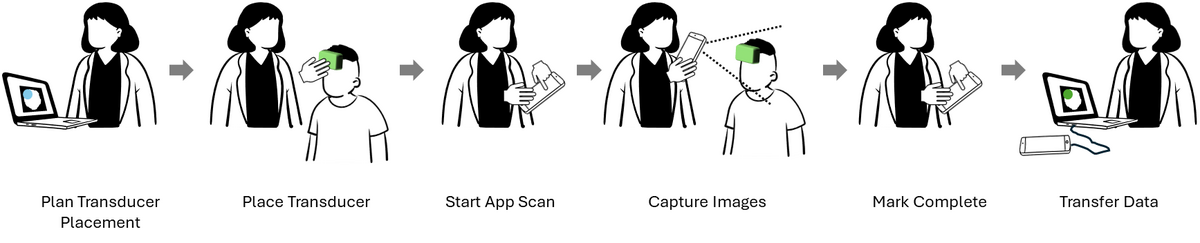
Figure 2 — Overview of the photogrammetry workflow: plan the transducer placement, place the transducer on the subject, start the scan in the app, capture images, mark the scan complete, and transfer the data to the PC.
Photocollection best practices
When capturing a photocollection, follow these best practices:
- Seat the subject in a comfortable, slightly reclined position. Neck support is recommended, but the neck rest should not block or obscure the back of the head.
- Minimize background noise: capture in a well-lit area that is free of clutter, with no people moving in the background.
- The subject should keep their eyes closed while the images are collected.
- Get as close as possible to the subject. Fill as much of the on-screen oval as possible with the subject's head and the transducer.
- Complete a full 360° circle around the subject, walking counterclockwise as instructed by the app.
- Maintain a slow and steady pace and do not stop part way through. Make sure each image is captured (the "bucket" turns green) before moving on to the next image, to avoid blurring.
- Capture the full 120 images.
Note
Photocollections with fewer than 120 images may produce low-quality reconstructions.
Recommended capture method (Online and Offline)
When starting capture, make sure the phone is facing the front of the subject and the subject is leaning back at a slight angle — for example, in a reclining chair with a neck rest.
Move the phone in a "sine wave" as you walk counterclockwise around the subject:
- Start by facing the subject, then begin walking counterclockwise.
- Slowly lower the phone as you reach the left side of the subject, making sure to fully capture the left side of the transducer.
- Gradually raise the phone as you reach the back of the head to capture the top of the transducer. Having the subject reclined helps with this part of the capture.
- Continue around to the subject's right side, and slowly lower the phone to get a complete view of the right side of the transducer.
- As you complete the full circle, slowly raise the phone so it is level with the subject's head once again.
This captures the front, sides, and top of the transducer and ensures complete coverage of the head and transducer from various angles. The method is illustrated in the Appendix.
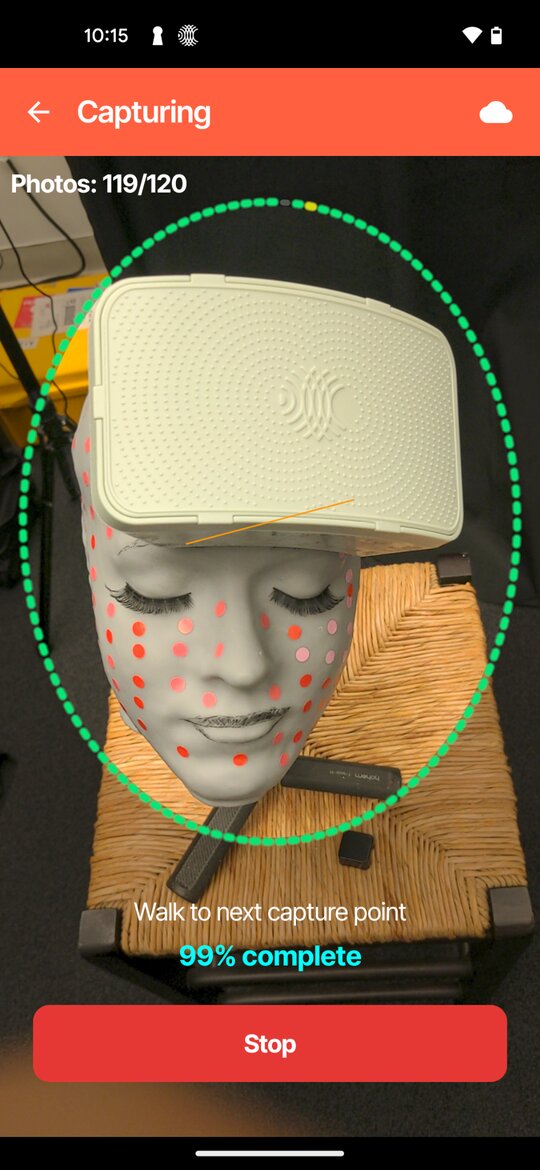
Figure 3 — Front view, captured straight on with the subject's face and the front of the transducer filling the on-screen oval (steps 1 and 5).
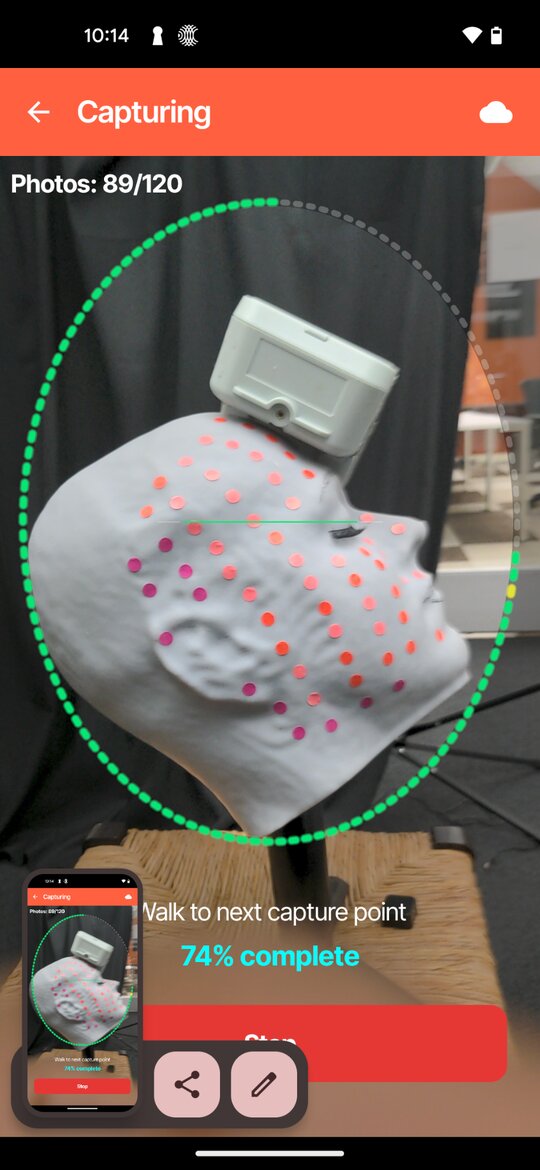
Figure 4 — Side view, captured with the phone lowered to show the full side of the transducer (steps 2 and 4).
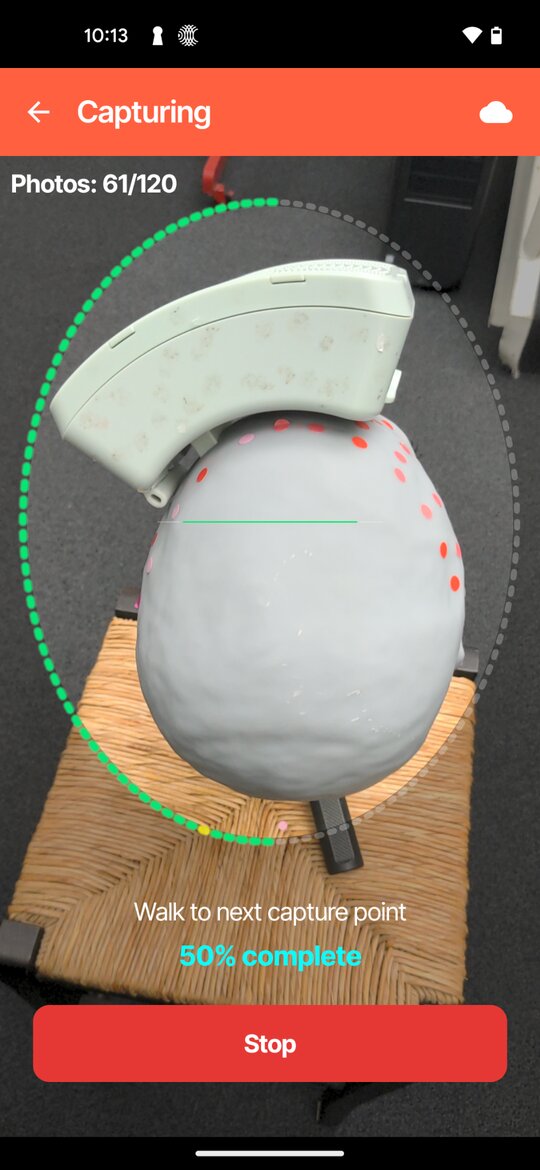
Figure 5 — Top view, captured from behind the subject with the phone raised to show the top of the transducer (step 3).
Running the app
The app can be used in Online Mode, which reconstructs the photoscan in the cloud, or Offline Mode, which reconstructs it locally on the PC. Use the table below to choose the workflow that matches your setup, then follow the steps for that workflow.
Cloud data retention
All images synced with Openwater's Cloud Services are automatically and permanently deleted within 24 hours of being uploaded.
| Workflow | When to use | How the photoscan reaches the PC |
|---|---|---|
| Option 1 — Online Mode: Full Internet Access | You have a Cloud Services account and the PC has internet access. | Reconstructed in the cloud and synced automatically to the Open-LIFU Desktop Application or Slicer Open-LIFU. |
| Option 2 — Online Mode: Limited Internet Access | You have a Cloud Services account, but the PC does not have internet access. | Reconstructed in the cloud and transferred to the PC by USB cable. |
| Offline Mode | You do not have a Cloud Services account. | The photocollection is transferred to the PC by USB cable and reconstructed locally (requires a GPU). |
Table 1 — Choosing a photogrammetry workflow.
Online Mode: cloud reconstruction
- Open the application on the phone. Read the Research Device Notice and tap OK to accept the terms and conditions. The notice appears each time the app opens unless Don't show again is selected.
-
When opening the application for the first time, enable the permissions displayed on screen (photo/video access and location).
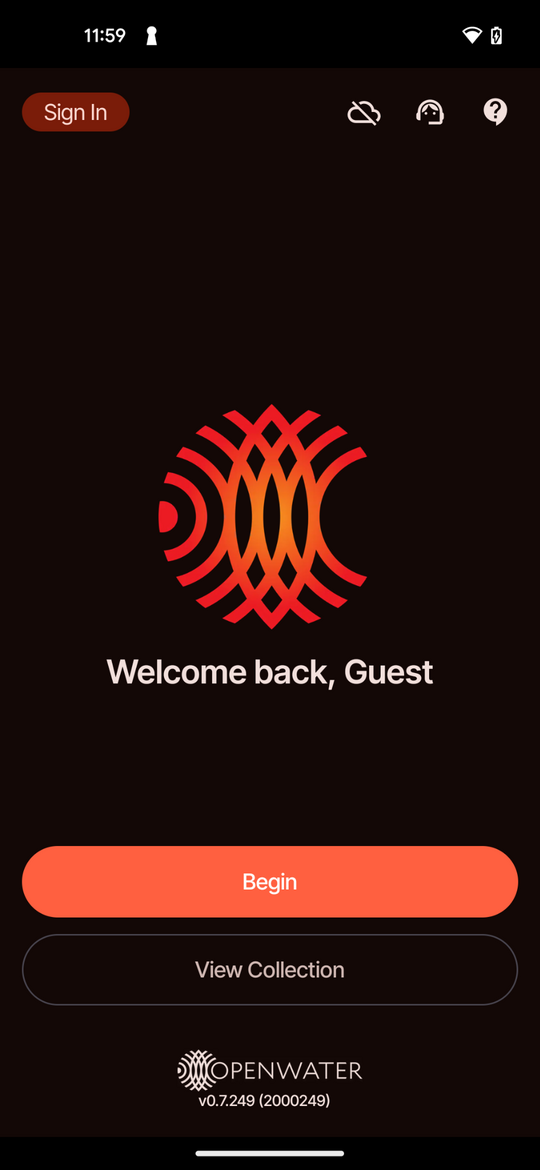
Figure 6 — Home screen before signing in. Tap Sign In in the top left corner to log into your Cloud Services account (step 3).
-
Tap Sign In and log into your Cloud Services account. Accounts are managed by Openwater or a local admin (console.openwater.health). For help logging in, contact your local admin or Openwater representative.
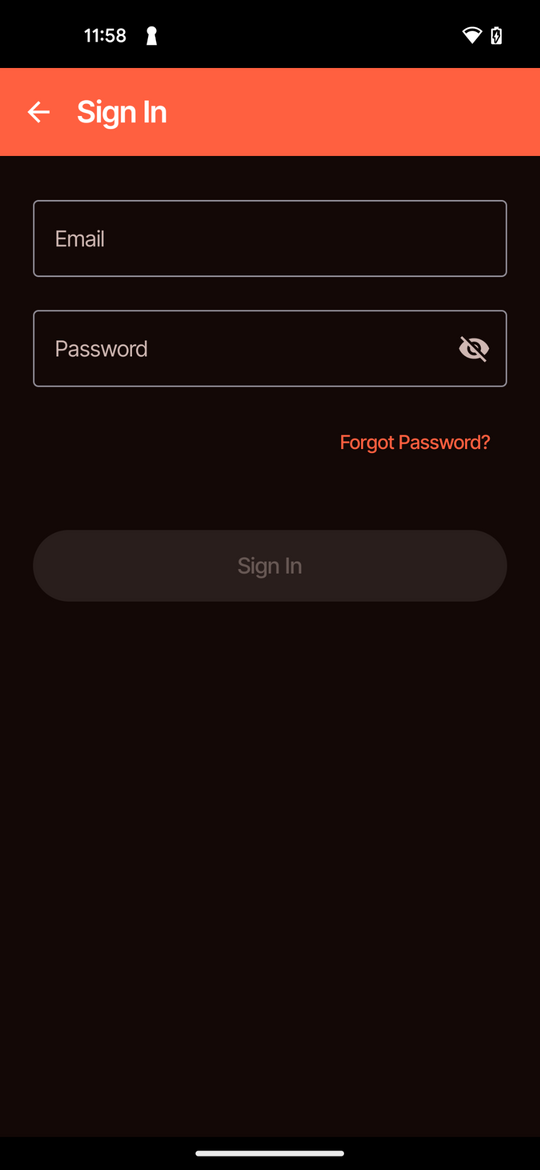
Figure 7 — Sign In screen. Enter the email and password for your Cloud Services account (step 3).
-
Once logged in, the app shows how many credits are available for scanning (1 credit per scan). Tap Begin.
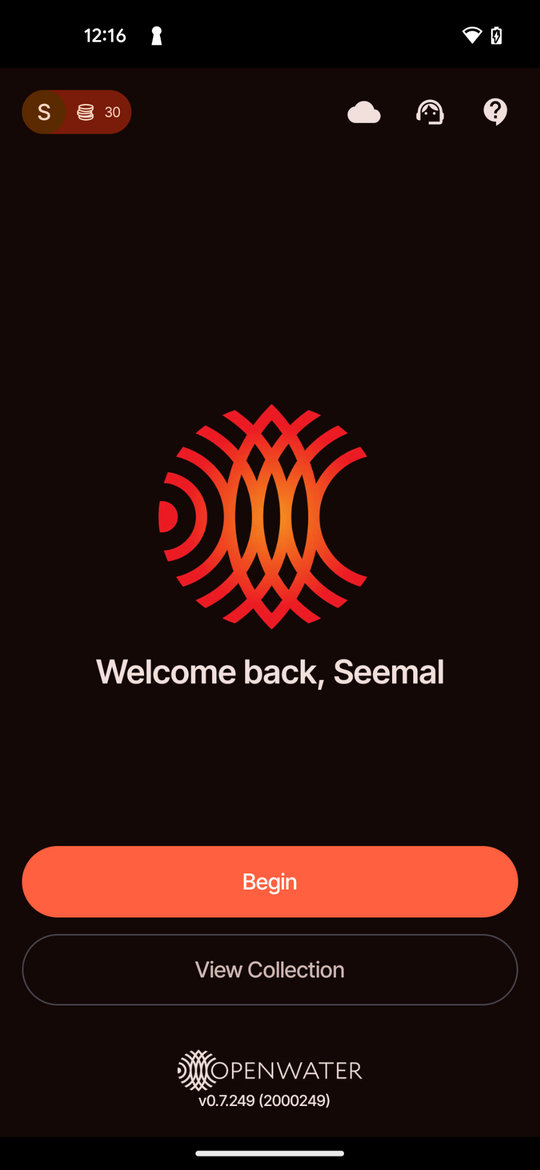
Figure 8 — Home screen after signing in. Your name and the number of available credits appear in the top left corner. Tap Begin to start a new photocollection (step 4).
-
When you tap Begin, you have two options: Existing Subject (Option 1) or Manually Input (Option 2).
Option 1 — Online Mode: Full Internet Access
- Make sure you are signed in, following the Online Mode sign-in steps. Tap Begin.
- Tap Existing Subject.
-
Choose the subject and session that were selected in the Open-LIFU Desktop Application. These sync automatically to the app for the user to select from.
Note
If the Subject or Session ID is not displayed, drag your finger down from the top of the phone screen to refresh the list.
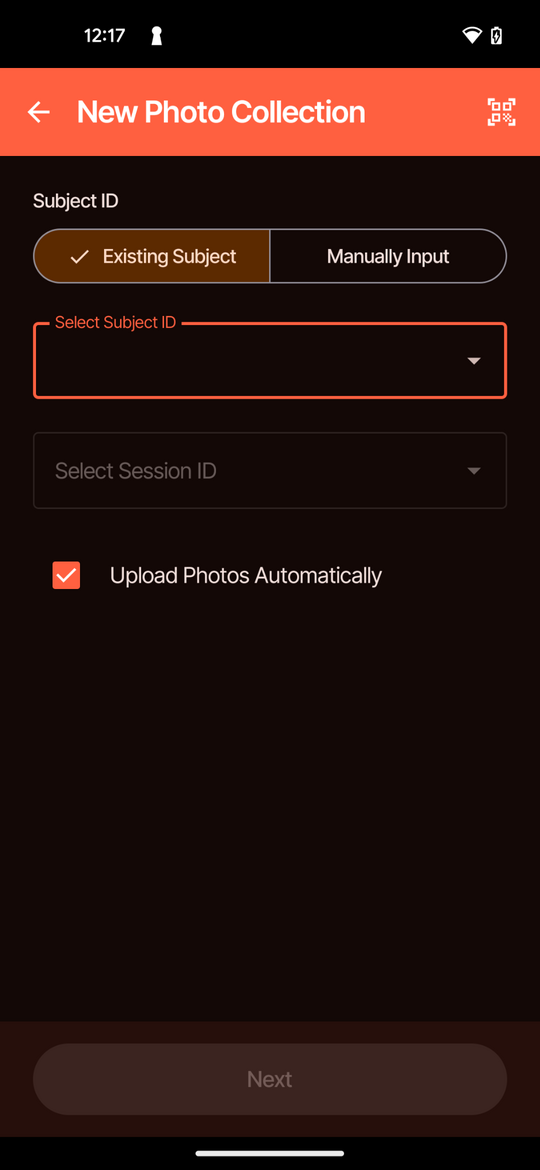
Figure 9 — New photocollection screen with Existing Subject selected. Select the Subject ID and Session ID that match the session in the Open-LIFU Desktop Application (step 3).
-
Tap Next to open the capture screen.
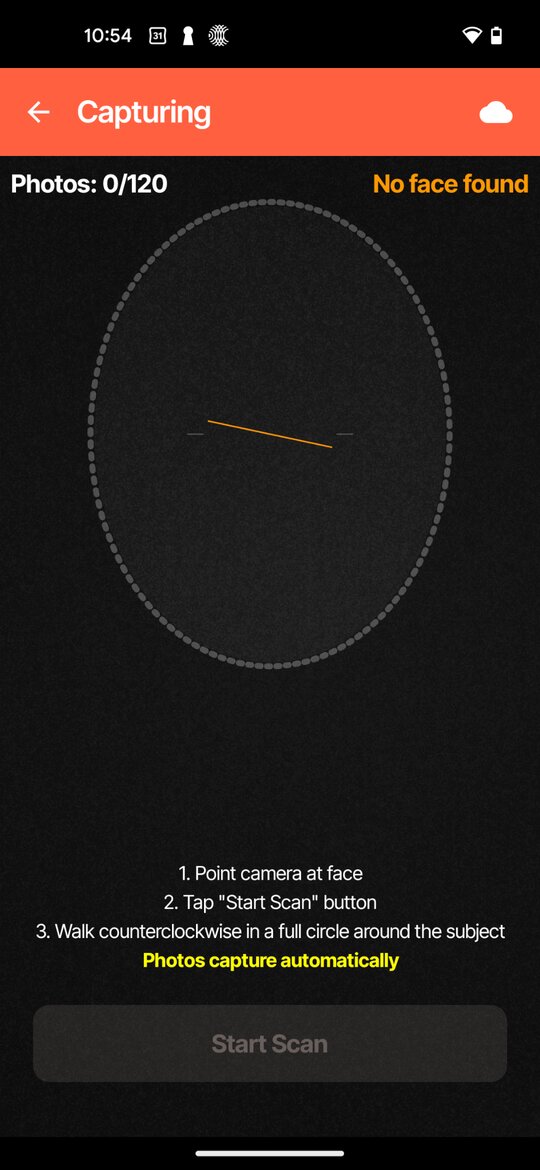
Figure 10 — Capture screen before scanning. Point the camera at the subject's face. Start Scan becomes available when "Face ready" appears (step 5).
-
Point the camera at the subject's face. When a face is detected ("Face ready" appears at the top of the screen), tap Start Scan and walk counterclockwise in a full circle around the subject. Photos are captured automatically.
Note
Follow the photocollection best practices. The app captures photos automatically and moves to the next screen when all 120 images are captured. Stop becomes available after 20 images; stopping early produces a less detailed photoscan, resulting in poor-quality reconstructions. After stopping, tap Proceed to keep the images or Re-capture to start again.
-
Once scanning is complete, the photoscan is automatically transferred to the photogrammetry section of the Open-LIFU Desktop Application or Slicer Open-LIFU. Click Refresh in the application if it does not show up immediately.
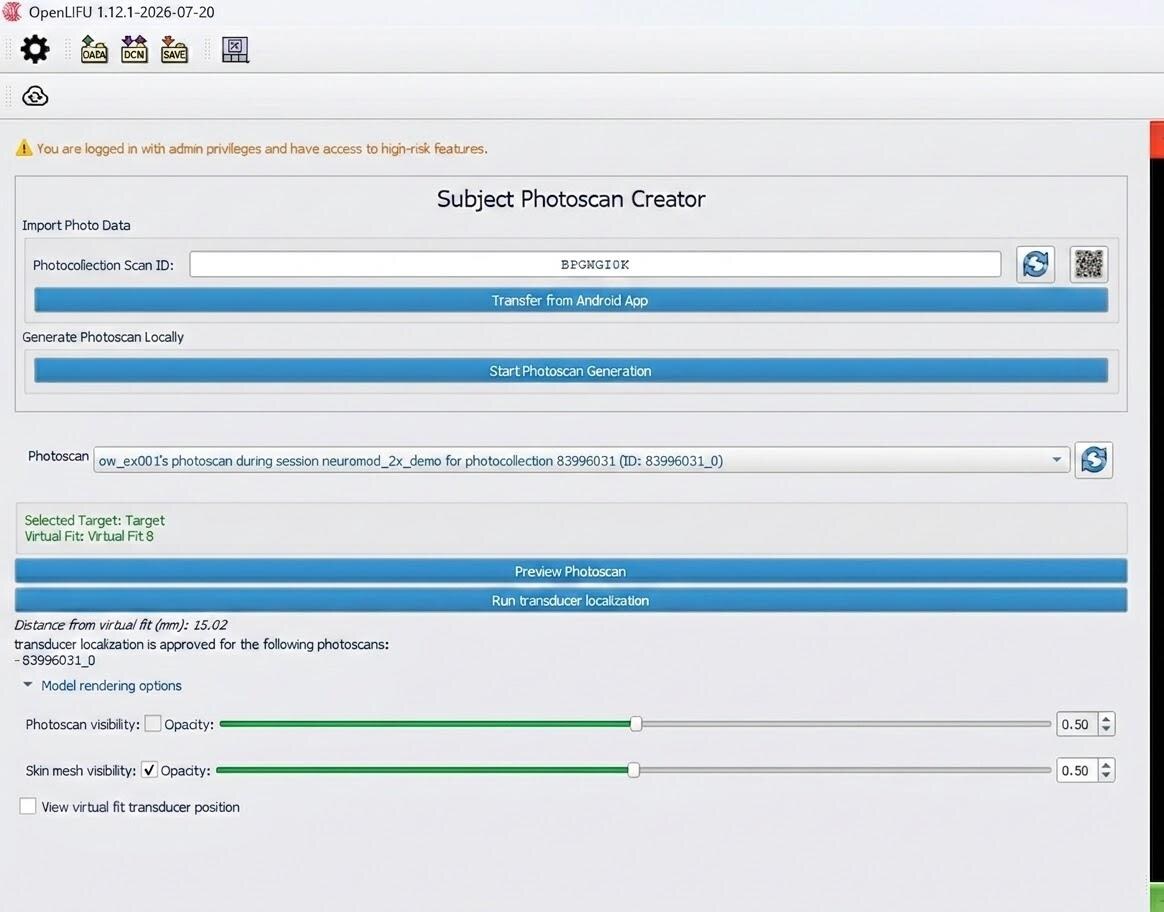
Figure 11 — Subject Photoscan Creator in the Open-LIFU Desktop Application. The cloud-reconstructed photoscan appears in the Photoscan list. If it does not appear, click the refresh button (blue double-arrows) beside the list (step 6).
Option 2 — Online Mode: Limited Internet Access
Note
Manual Input may be used when the PC has no internet access but the user still wants cloud reconstruction. It lets the user transfer the cloud-reconstructed images directly onto the PC via USB.
- Make sure you are signed in, following the Online Mode sign-in steps. Tap Begin.
-
Tap Manually Input. In the Open-LIFU Desktop Application, go to the Subject Photoscan Creator and generate a Subject Scan ID using the blue double-arrows. On the phone, type the ID into the Input Subject Scan ID field, or click the QR code icon on the PC and use the app to scan the QR code displayed in the desktop application.
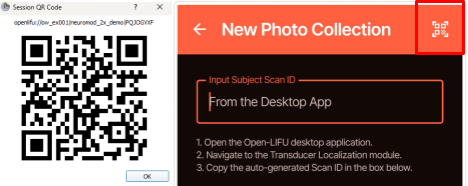
Figure 12 — Generating the Subject Scan ID in the Open-LIFU Desktop Application also generates the QR code. Use the blue double-arrows to generate the Photocollection Scan ID, then type in the ID or use the QR code icon to display a QR code for the app to scan (step 2).
-
Tap Next to begin capturing.
Figure 13 — Capture screen before scanning. Point the camera at the subject's face and tap Start Scan when "Face ready" appears (step 4).
-
Point the camera at the subject's face. When a face is detected ("Face ready" appears at the top of the screen), tap Start Scan and walk counterclockwise in a full circle around the subject. Photos are captured automatically.
Note
Follow the photocollection best practices. The app captures photos automatically and moves to the next screen when all 120 images are captured. Stop becomes available after 20 images; stopping early produces a less detailed photoscan, resulting in poor-quality reconstructions. After stopping, tap Proceed to keep the images or Re-capture to start again.
-
Once the scan is complete, connect the phone to the PC running the Open-LIFU Desktop Application or Slicer Open-LIFU using a USB-C cable.
- Tap Transfer to PC on the phone, then click Transfer from Android App in the Open-LIFU Desktop Application. Wait until the phone displays "Status: Completed" and the photocollection appears in the desktop application.
Offline Mode: local reconstruction
-
Open the application on the phone. Read the Research Device Notice and tap OK. The notice appears each time the app opens unless Don't show again is selected.
Figure 14 — Home screen in Offline Mode. Do not sign in. Tap Begin to start a new photocollection (step 3).
-
When opening the application for the first time, enable the following permissions while using the application:
- Photo/video access
- Location sharing
- Tap Begin. Do not sign in.
-
In the Open-LIFU Desktop Application, open the Transducer Localization module and click the blue double-arrows to generate a new Subject Scan ID. On the phone, type the ID into the Input Subject Scan ID field, or tap the QR code icon and scan the QR code displayed in the desktop application.
Figure 15 — Generating the Subject Scan ID in the Open-LIFU Desktop Application. Use the blue double-arrows to generate the Photocollection Scan ID, then type in the ID or use the QR code icon to display a QR code for the app to scan (step 4).
-
Tap Next to begin capturing.
-
Point the camera at the subject's face. When a face is detected ("Face ready" appears at the top of the screen), tap Start Scan and walk counterclockwise in a full circle around the subject. Photos are captured automatically.
Note
Follow the photocollection best practices. The app captures photos automatically and moves to the next screen when all 120 images are captured. Stop becomes available after 20 images; stopping early produces a less detailed photoscan, resulting in poor-quality reconstructions. After stopping, tap Proceed to keep the images or Re-capture to start again.
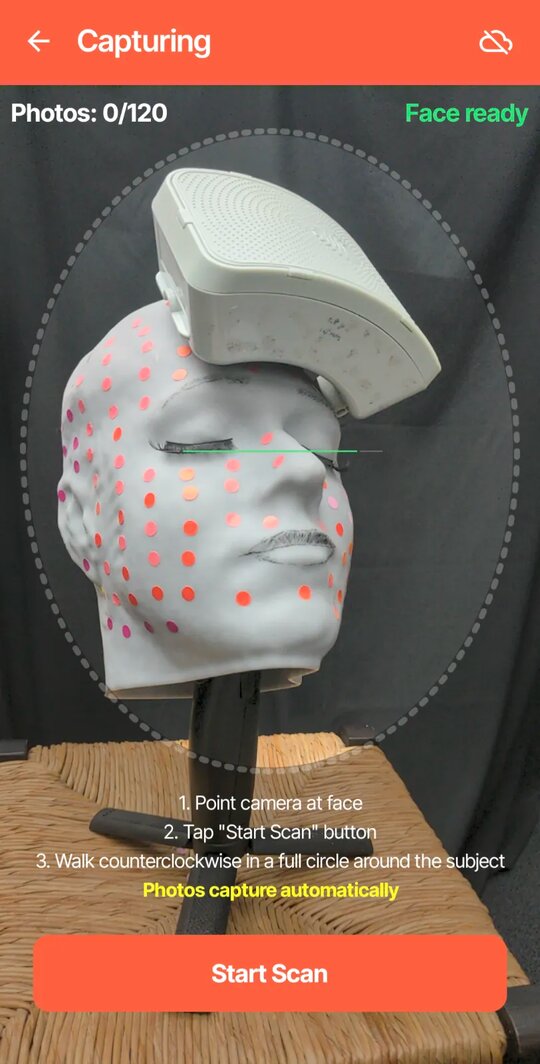
Figure 16 — Capture screen before scanning. Point the camera at the subject's face and tap Start Scan when "Face ready" appears (step 6).
-
Once the scan is complete, connect the phone to the PC running the Open-LIFU Desktop Application or Slicer Open-LIFU using a USB-C cable.
- Tap Transfer to PC on the phone, then click Transfer from Android App in the Open-LIFU Desktop Application. Wait until the phone displays "Status: Completed" and the photocollection appears in the desktop application.
- Use the desktop application to reconstruct the 3D mesh.
For Offline Mode, the following settings are recommended before starting reconstruction:
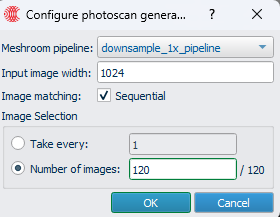
Figure 17 — Recommended Offline Mode settings in the "Configure photoscan generation" window: Meshroom pipeline downsample_1x_pipeline, input image width 1024, Sequential image matching, and 120 images.
Viewing and managing photocollections
Photocollections remain on the phone after capture. Use View Collection to review, transfer, or delete them.
- On the home screen, tap View Collection. Each photocollection is listed by its Subject Scan ID, with the capture date and the number of photos.
- Tap a photocollection to open it. If the photoscan has not been processed ("Scan Not Processed"), tap Transfer to PC to transfer the photocollection to the PC by USB cable.
- Tap Photos to scroll through the captured images. To delete individual images, select them and tap Delete.
- To delete the entire photocollection, tap the three-dot menu in the top right corner and select Delete Scan.
Customer support
For help with the Open-LIFU Photogrammetry App, contact Openwater Support using the information below or the details provided in your Service Agreement.
- Email — support@openwater.cc
- Phone — (415) 484-3776
- Web — www.openwater.health
- Community — Discord
From the app, tap the Customer Support icon (headset) on the home screen to email, call, or visit the Openwater website. Tap the Support & Legal icon (question mark) to watch the video tutorial, submit feedback, or view the Research Device Notice.
Troubleshooting
| Issue | Potential cause | Recommended steps |
|---|---|---|
| Slow photogrammetric reconstruction | PC is underpowered | Use Online Mode to generate the photoscan. |
| The app is outdated | Update to the latest version of the app from the Google Play Store. | |
| Cannot connect to the app (Offline) | Cable not properly connected; faulty cable; incompatible drivers; computer antivirus blocks access | Inspect connection cables, verify drivers, and allow application access through network and security settings. |
| ADB not installed; environment variables not set properly | Go to the Login page and confirm ADB has a green checkmark next to it. If not, click the button to install it. | |
| Cannot connect to the app (Online) | Not signed into Openwater's Cloud Services on both devices, or not signed in with the same account | Make sure you are signed into both devices with the same Cloud Services account. |
| Cloud account does not exist | Make sure you have an active Cloud Services account. | |
| The app is outdated | Update to the latest version of the app from the Google Play Store. | |
| Unstable or no network connection | Check the network connection; connect to a different network; contact your IT department or network provider if the problem persists. | |
| Open-LIFU application is not synchronizing with the app (Online) | Not signed into Cloud Services on both devices with the same account | Make sure you are signed into both devices with the same Cloud Services account. |
| Cloud account does not exist | Make sure you have an active Cloud Services account. | |
| Unstable or no network connection | Check the network connection; connect to a different network; contact your IT department or network provider if the problem persists. | |
| Photocollections are not synchronizing from the app to the cloud | Not signed into Cloud Services on the app | Make sure you are signed into the app with the same Cloud Services account. |
| Cloud account does not exist | Make sure you have an active Cloud Services account. | |
| Cloud reconstruction credits have been exhausted | Contact Openwater Support. | |
| The app is outdated | Update to the latest version of the app from the Google Play Store. | |
| Unstable or no network connection | Check the network connection; connect to a different network; contact your IT department or network provider if the problem persists. | |
| Slow system performance | No or incompatible graphics card; graphics card not functioning; too many programs, apps, or background processes running | Use the recommended GPU and make sure drivers are up to date. Close all other programs and apps before running Open-LIFU. |
| Poor image reconstruction | Low-quality photocollection; background in the photos may be too "busy" | Make sure the app is up to date. Follow the best practices for capturing images. |
| Phone held too far from the subject's head/face | Adjust closeness and camera position relative to the subject. | |
| Poor photogrammetry registration with the MRI | Low-quality image reconstruction (photoscan) | Make sure the app is up to date. |
| Selected anatomical landmarks or features between the 3D mesh and MRI do not match | Accurately select corresponding anatomical landmarks or features on both the 3D mesh and MRI. | |
| Transducer shifts on the subject after the photogrammetry mesh has been acquired | The transducer was not properly secured to the subject, or was accidentally bumped | Adjust the transducer straps to hold it firmly in place and recapture the photogrammetry mesh. If necessary, adjust the transducer, recapture the mesh, and repeat session planning. Make sure the subject is seated comfortably so movement is minimal. |
| "No face found" or "Move closer" appears during capture | The subject's face is not inside the on-screen oval, or the phone is too far from the subject | Point the camera at the subject's face and move closer until "Face ready" appears. Fill as much of the oval as possible with the subject's head and the transducer. |
Table 2 — Common troubleshooting issues, potential causes, and recommended steps.
Appendix: sine wave capture method
This appendix illustrates the recommended capture method. Walk counterclockwise around the subject while moving the phone up and down in a "sine wave."
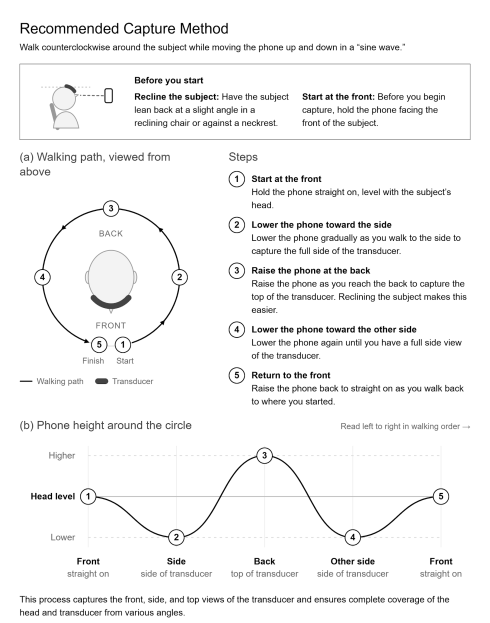
Figure 18 — Sine wave capture method, showing the counterclockwise walking path around the subject and the phone height at each position.
Related documentation
| For | See |
|---|---|
| The PC-side Transducer Localization workflow | Open-LIFU User Manual (LBL-00009) |
| Transducer Localization in 3D Slicer | Slicer Open-LIFU |
| App source code | OpenLIFU-3DScanner on GitHub |
| Evidence on localization accuracy | Open-LIFU Transducer Localization Accuracy Study |
This page reflects LBL-00017 Revision A, app software v0.7.257, released 2026-10-21. All information — including product features, specifications, and descriptions — is subject to change without notice. For the controlled revision, use the PDF.
CAUTION — The system described here has not been evaluated by the FDA and is not designed for the treatment or diagnosis of any disease. It is provided AS-IS, with no warranties. User assumes all liability and responsibility for identifying and mitigating risks associated with using this software.
-
Users with an unsupported phone are encouraged to visit Openwater's Discord and join the Photogrammetry channel. ↩